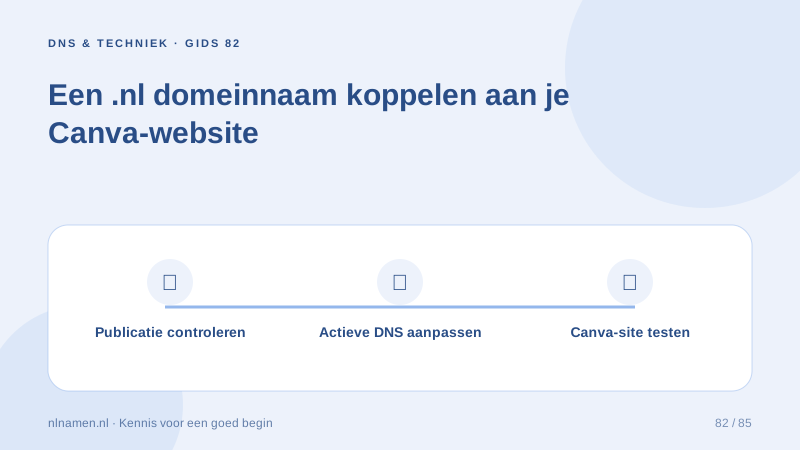
A Canva website can use a recognisable .nl address. Start by checking the publishing options in your Canva account before editing DNS. Registration, website publishing and business email are separate services; planning them individually makes the connection easier to check and maintain.
Check the design and your account permissions
Check that the design supports Website publishing and that your Canva account offers an existing-domain connection. Eligibility depends on the plan and team permissions. If the option is missing, resolve that first. Decide whether the website should use the main domain or a separate subdomain.
Choose the address and save the starting point
List the current website, email and subdomains, then save their DNS settings. Add the proposed Canva address to that service map. A separate subdomain can be useful for reviewing a new site before changing an established main website.
Choose between a subdomain and another domain →
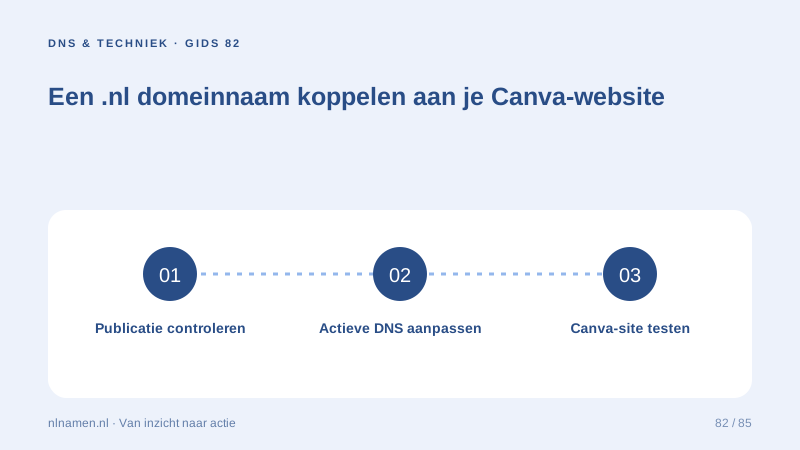
Use the records from your Canva connection
Begin the existing-domain connection in Canva. For manual setup, copy its displayed records to the active DNS provider and distinguish record names from their values. If your nlnamen.nl domain uses custom nameservers, edit that provider’s zone rather than an unrelated DNS panel.
Keep email and other services in the change plan
Mark website records for editing and retain records needed by email and other services. A troubleshooting instruction about conflicts should not turn into deleting the entire zone. Have unfamiliar records identified before changing them. Business email remains a separate service from website publishing.
How email on your own domain works →
Publish, verify and document
Complete publishing and check the address status in Canva. Review the site on a phone, including text, contact details and buttons. Record the publication date and checks. Canva allows up to 72 hours for verification in some cases; an incorrect record still needs correction rather than repeated identical edits.
Your practical checklist
- Check domain connection eligibility and permissions.
- Choose the main domain or a subdomain.
- Save the current DNS setup.
- Use records supplied for your own website.
- Test the website and existing email separately.
You keep an established website while reviewing a new Canva design on a separate subdomain. Record the records used for the trial, leave the main address alone and check the result on mobile before deciding whether to replace the main site.
Common questions
Can business email keep working alongside Canva?
Yes. Plan the website connection separately and preserve the correct mail records. Test receiving and sending afterwards rather than relying on the website alone.
Is Canva hosting included with a .nl domain?
No. A domain at nlnamen.nl and a Canva publication are separate services. Check the current Canva plan and publishing options in your own account.
Sources and further reading
Registration rules and provider functions can change. Check the current requirements for your domain before ordering or changing services.
Ready for your own .nl?
€9.99 for year one, €12.99 renewal or 3 years for €27. No hosting required.
Check your domain →